
Your video stays local
The source MP4 remains in browser memory instead of being transferred to a media server.
Private video-to-GIF conversion
Turn a short MP4 video into an animated GIF without sending the source to a conversion server. Adjust the frame rate, choose an output width, select the palette quality, and download the real GIF from your browser. No account is required.
Files never leave your device.
Local video-to-GIF workspace
Turn one short MP4 clip into a looping animated GIF.
Your MP4 is processed locally and is not uploaded.
Local by design
Vidoro runs FFmpeg WebAssembly inside your browser. The selected MP4 is read from local browser memory, decoded into video frames, converted through a GIF color palette, and made available as a local download. The source video is not uploaded to Vidoro's conversion backend or sent to a third-party conversion API.
The browser may download the FFmpeg WebAssembly application code from its CDN the first time the tool runs. That network request retrieves the converter itself, not your media. The MP4 and generated GIF remain on the device while the conversion is active, and temporary browser URLs are released when you replace the file or leave the page.
The source MP4 remains in browser memory instead of being transferred to a media server.
FPS, width, and palette quality map directly to the real FFmpeg conversion command.
The downloaded result uses the GIF format, loops, and contains the converted animation frames.
Measured example
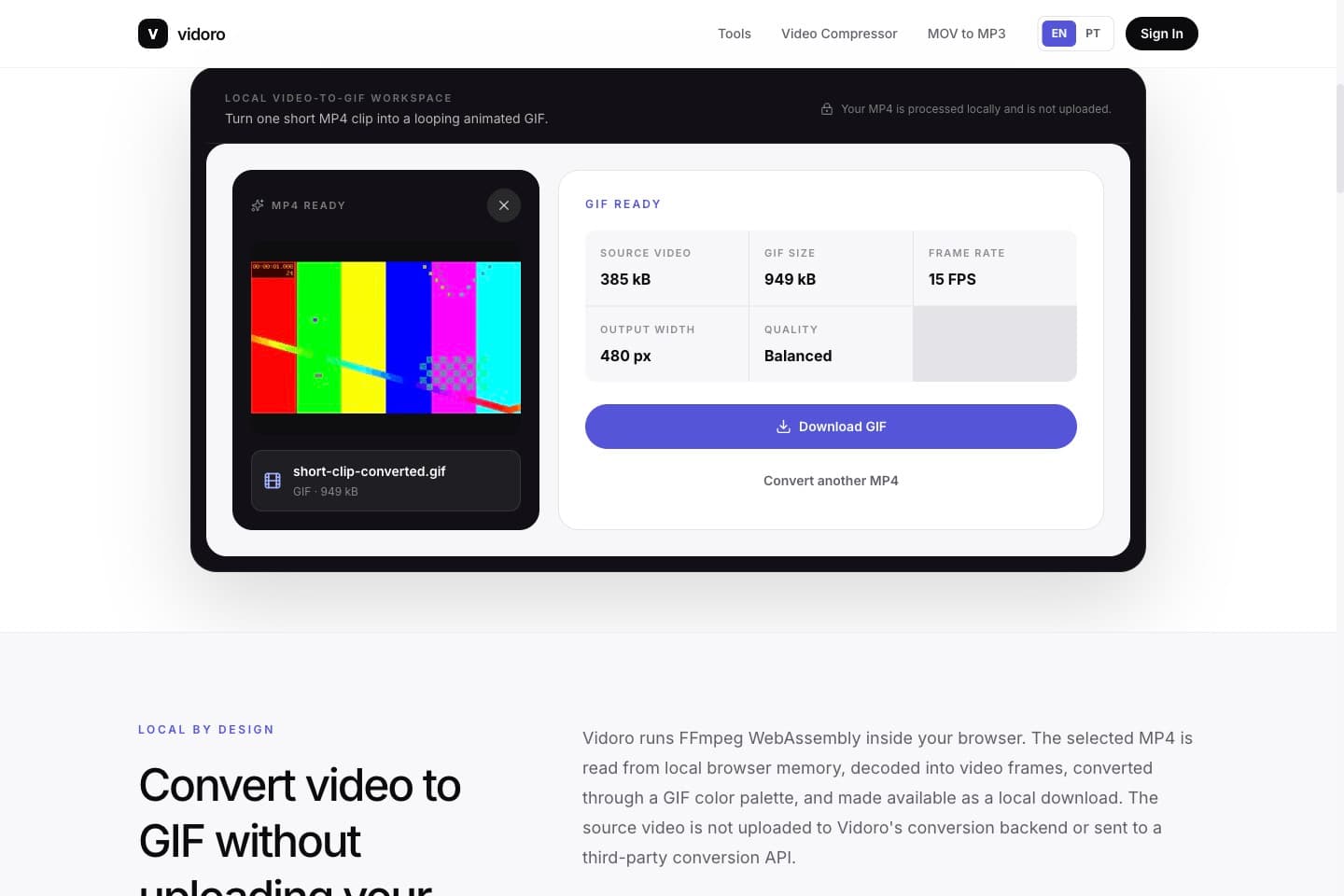
This example comes from the test fixture used while implementing the converter. It shows why MP4-to-GIF is a format conversion rather than file compression: the GIF can be larger than the efficient source video.
Measured fixture result. Output size varies with motion, duration, dimensions, frame rate, colors, and source encoding.
Source
5-second · 640 × 360 MP4 · 385 kB
Settings
15 FPS · 480 px · Balanced
Result
Animated GIF · 949 kB
Three real steps
The workflow is intentionally short: start with an MP4 clip, make three meaningful output choices, and download a looping GIF. The same steps are used in the page's HowTo structured data.
Choose a valid .mp4 video up to 100 MB and 30 seconds. Vidoro checks the extension, MIME type, MP4 file signature, duration, and video dimensions locally before enabling the converter. Short source clips produce more practical GIFs and reduce browser memory pressure.
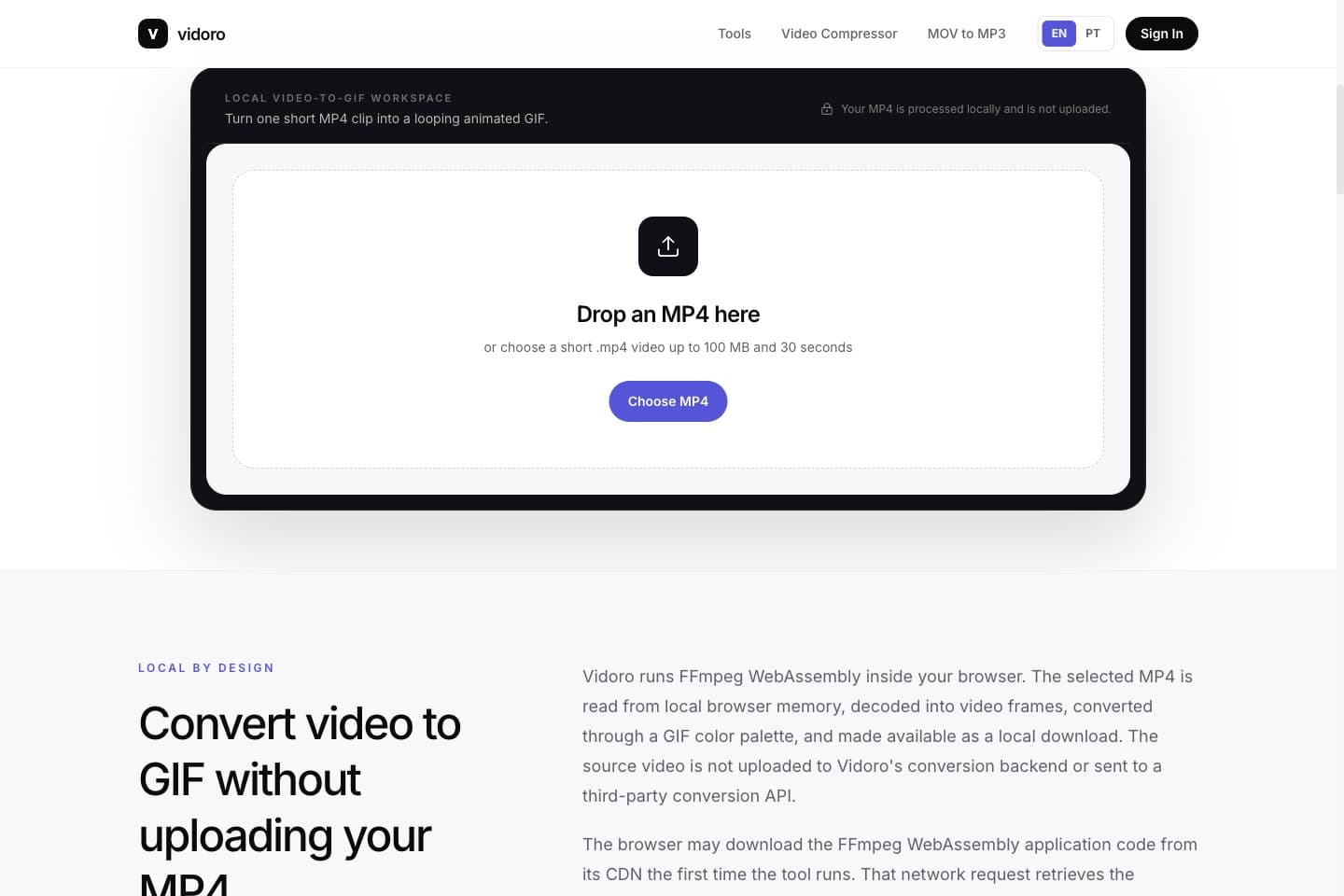
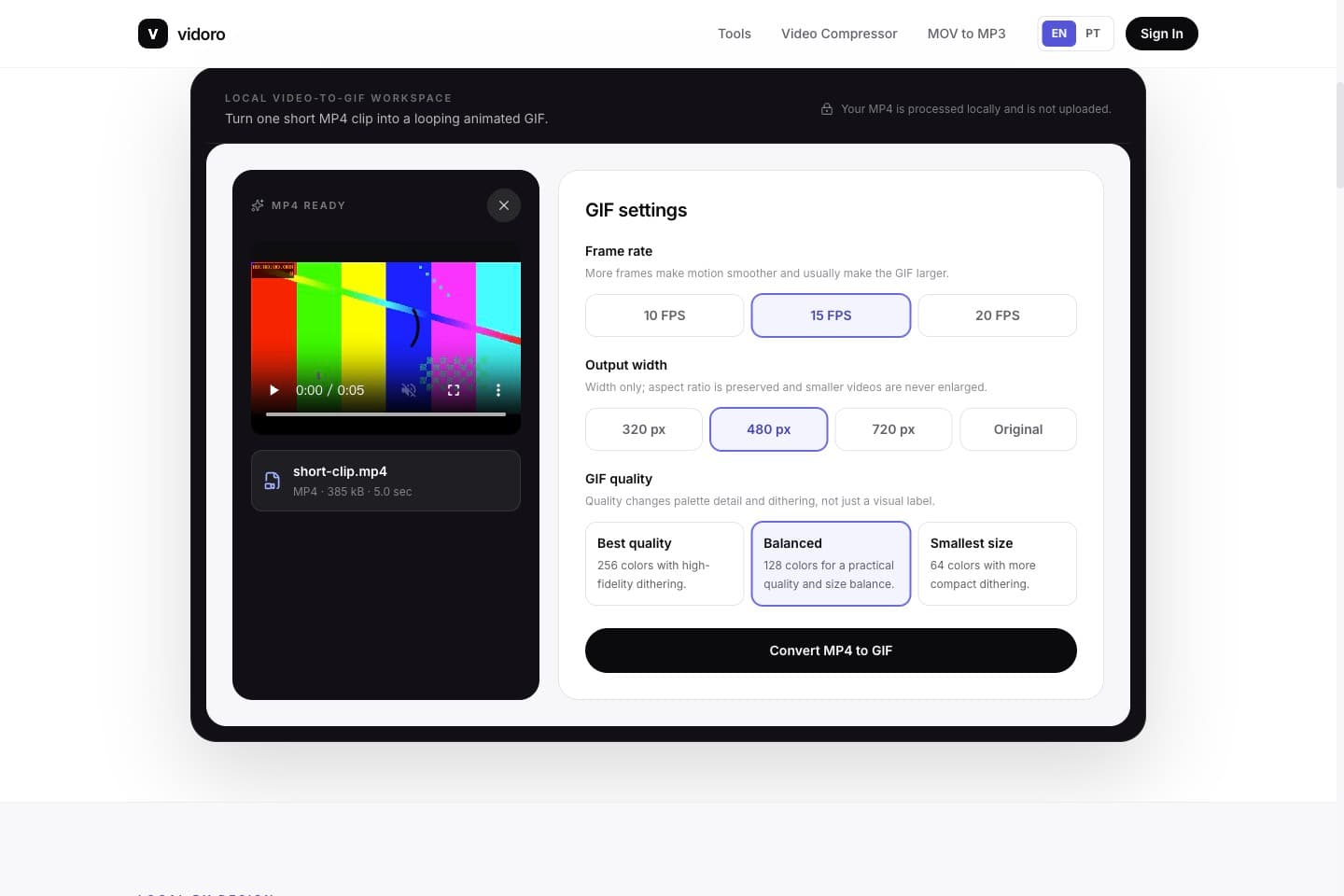
Use 15 FPS, 480 px, and Balanced as a reliable starting point. Increase frame rate when motion needs it, choose enough width for captions or interface detail, and use Best quality when palette fidelity matters. The converter preserves aspect ratio and never enlarges a video that is narrower than the selected output width.
Start the real FFmpeg conversion and keep the tab open while progress is reported. The result panel shows the measured MP4 size, GIF size, selected FPS, actual output width, and quality. Preview the animation, then download a .gif file; a larger GIF is normal because MP4 and GIF use very different encoding methods.
For short clips with a destination
There is no single perfect setting for every video. Start from where the GIF will be used, then balance readable detail, smooth movement, and a manageable output size.
A short video reaction can become easier to reuse in Discord once it loops as a GIF. Keep the source focused on the moment that matters: a facial expression, game reaction, quick animation, or community in-joke. Long clips produce many frames and can quickly create a heavy GIF, even when the MP4 looks small. Begin with 15 FPS and a 480 pixel width so movement remains readable without retaining unnecessary source resolution.
If the result does not meet Discord's current upload requirements, reduce width to 320 pixels before lowering frame rate. Smaller dimensions remove many pixels from every frame, while a lower FPS removes complete frames. Balanced quality is a practical first pass for reactions; Smallest size can help when flat colors and simple shapes tolerate a 64-color palette. Always preview captions, faces, and fast motion before sharing the converted GIF in a server or direct message.
Reaction clips and short meme videos need to remain understandable as they move through an X timeline. Crop is intentionally outside this converter, so begin with a source MP4 that already contains the right moment and framing. A 480 pixel GIF is often enough for expressions and large text, while 720 pixels preserves more detail at a substantial file-size cost. Frame rate matters most when gestures or camera movement would look broken at a lower setting.
Use 15 FPS and Balanced quality first, then inspect the actual result rather than assuming more frames always look better. Try 20 FPS for brief, fast motion only when the added frames improve meaning. If the GIF is difficult to upload under the platform's current requirements, use 320 pixels or Smallest size. Check gradients and caption edges after palette reduction, and keep the source clip short so the animation begins quickly and repeats without a long wait.
A GIF can turn a short product recording into a quick visual reply in Slack: show a button state, reproduce a small interface issue, or share a team reaction without asking everyone to play a video. The most useful clips are concise and framed around one action. A long desktop recording converted at full width creates many large frames and distracts from the exact behavior colleagues need to see.
For UI demonstrations, choose enough width to keep labels legible, then reduce frame rate before sacrificing critical text clarity. Best quality can protect gradients and small interface details, while Balanced usually works for reactions and simple motion. If the result is too heavy for the channel's current upload requirements, shorten the source MP4 outside this tool or choose 320 pixels. Preview one complete loop and confirm that the beginning and ending communicate the action cleanly before posting it to a channel.
A high-quality GIF is not created by increasing FPS alone. The useful detail comes from several linked choices: source quality, output resolution, frame rate, palette colors, and dithering. Start with a clean, short MP4 and select Best quality, which builds a 256-color palette and uses high-fidelity dithering. Keep enough width for the subject, subtitles, or interface labels, but avoid choosing a larger width than the original video because upscaling cannot restore information.
Use 15 FPS for most MP4-to-GIF work and increase to 20 only when motion genuinely benefits. More frames increase data and can make the final GIF harder to share without improving still areas. Strong gradients and photographic footage challenge GIF's limited palette, so inspect banding and moving edges in the preview. Balanced may sometimes look equally convincing at a smaller size. The best video-to-GIF setting is the lowest complexity that preserves the detail viewers actually need.
Useful answers
MP4 is a modern video container that can use efficient video compression and audio. GIF is a silent, palette-based image format built from animation frames. This page converts video into GIF. If you already have a GIF and only want to reduce its file size, use Vidoro's separate GIF Compressor.
Usually. GIF is limited to a color palette and does not preserve MP4 video encoding. Output quality depends on width, FPS, palette colors, dithering, and the source. Best quality preserves more palette detail, while Balanced and Smallest size make progressively stronger tradeoffs.
That is normal. MP4 codecs compress motion efficiently across frames, while GIF stores palette-based image frames with simpler compression. A short MP4 can therefore create a GIF several times larger. Lower the width, FPS, or palette quality when output size matters.
Yes. Choose 10, 15, or 20 FPS. Ten frames per second creates fewer frames, 15 is the default balance, and 20 can help fast motion. The selected frame rate is applied in the real FFmpeg filter graph and is reported with the result.
Yes. Choose a width of 320, 480, 720 pixels, or Original. Height is calculated automatically to preserve aspect ratio. A selected maximum never enlarges a narrower source video, so a 300 pixel MP4 remains at most 300 pixels wide.
The first release accepts MP4 clips up to 30 seconds and 100 MB. Video-to-GIF conversion expands compressed video into many frames, so these conservative limits protect browser memory and keep the tool focused on short clips.
No. The MP4 is processed locally with FFmpeg WebAssembly and is not uploaded to Vidoro's conversion backend. The browser may download the FFmpeg application code from a CDN, but the selected video itself stays on your device.
A current mobile browser can run the converter, but GIF generation is CPU- and memory-intensive. Use a short, smaller MP4, start at 320 pixels and 10 or 15 FPS, keep the tab open, and use a desktop for clips near the file or duration limit.
Related tools
MP4 to GIF creates an animation from video. These separate Vidoro tools handle existing GIFs, video file size, and audio extraction without mixing search intent.