
The quick answer
One portrait becomes one complete vertical visual.
If you are searching for how to make the Raindance AI video, the practical workflow is simpler than a general AI filmmaking project. You do not need to write a prompt, animate keyframes or edit a timeline. Prepare one strong identity photo, place it in the generator, confirm the fixed style and let the service create a 15-second 9:16 visual.
The downloaded result is intentionally silent. Music associated with the format is protected by copyright, so Vidoro does not include it in a commercial generation or offer it as a download. Once the visual is complete, upload it to TikTok or Instagram and select authorized music through the platform's own library. The four steps below cover the entire process, including the details that most often affect identity quality.
Step 1
Choose a clear portrait
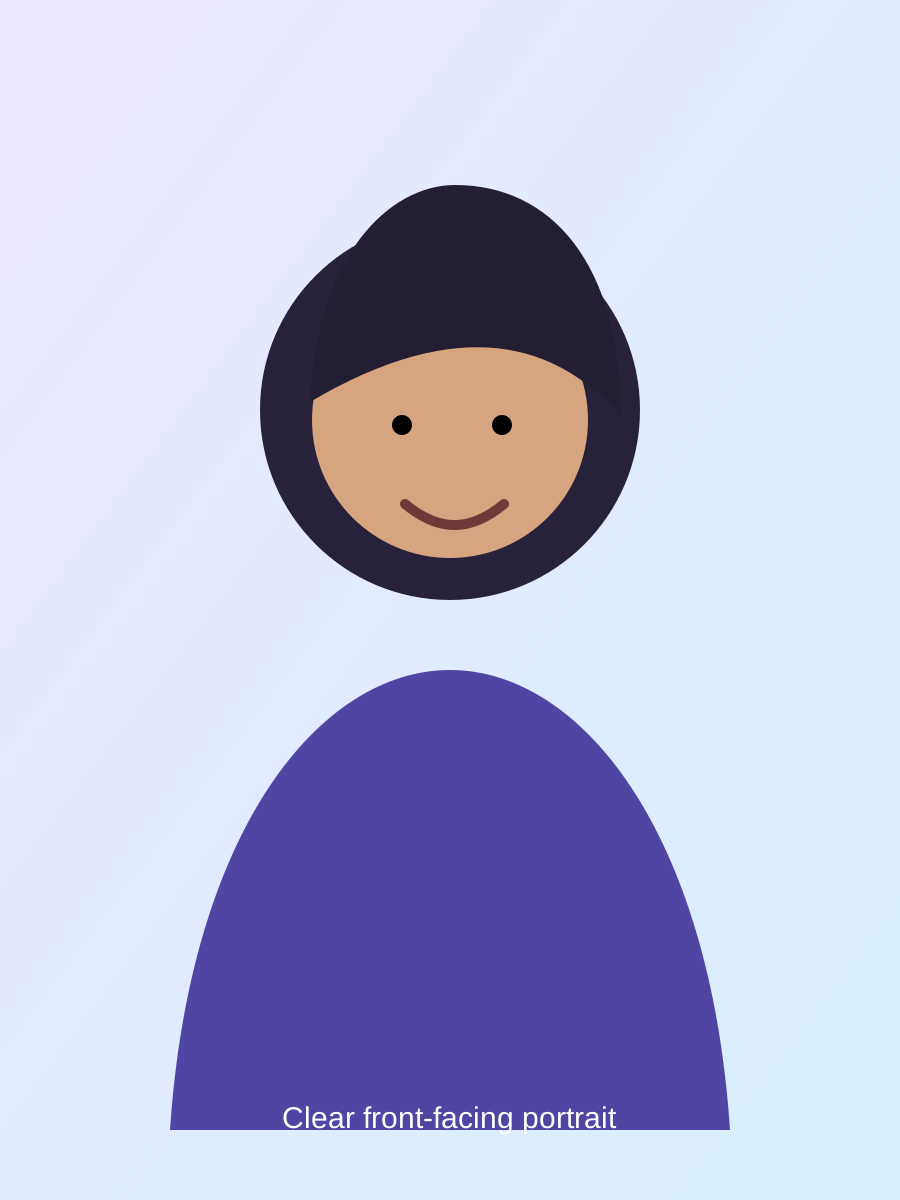
Start with a front-facing photo where the subject is easy to identify at a glance. Both eyes should be visible, the face should be in focus and the lighting should be reasonably even. A shoulder-up or chest-up portrait is often ideal because it provides the face, hairstyle and enough clothing context without making the face too small.
Avoid strong side profiles, dark club lighting, sunglasses, face masks and hands crossing the cheeks or mouth. Beauty filters that reshape the jaw or enlarge the eyes can also make identity less stable because the model receives an altered reference. If the only copy is a social-media screenshot, look for the original camera file before uploading.
One person should appear in the image. If you must crop a group photo, leave a little space around the head and shoulders rather than cutting closely through the hair or chin. The source background does not need to match the final scene; the generator builds a new fixed environment and uses the portrait primarily for identity.
Photo check: zoom to the face at 100%. If the eyes are soft or blocky there, choose a sharper file before using your free attempt.
Step 2
Preview and choose the style
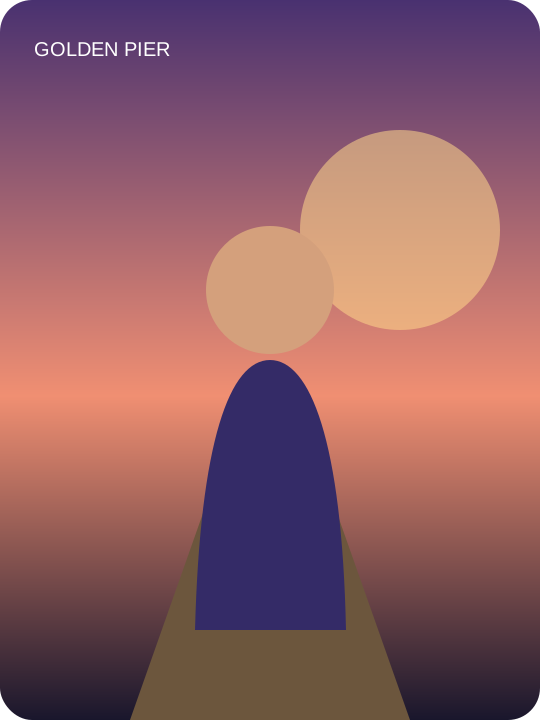
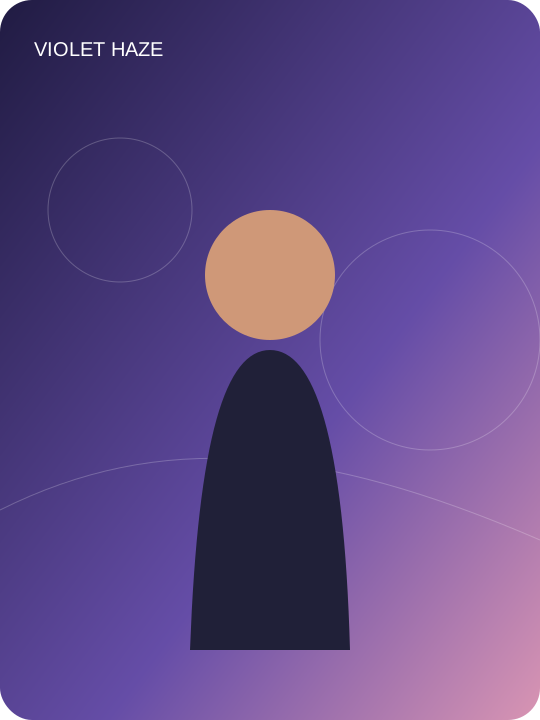
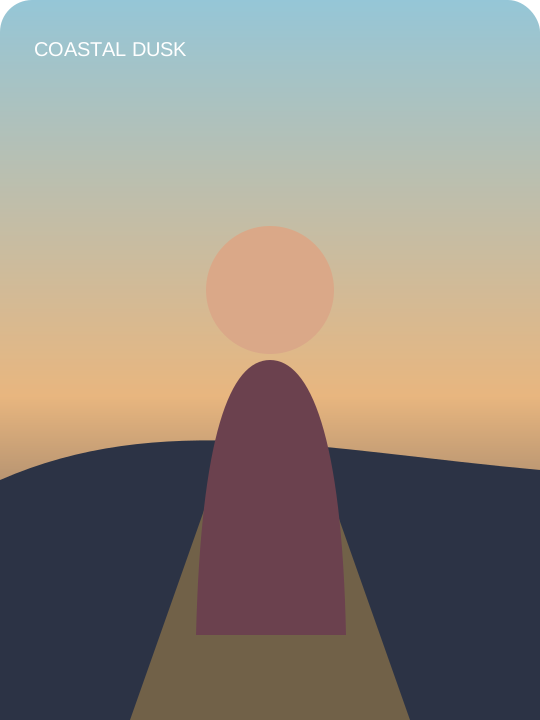
The generator shows a short row of vertical style previews. Tap a thumbnail to view the larger sample area. The current release keeps one consistent cinematic performance direction, so the preview is for understanding the framing and color mood rather than writing a custom prompt.
Look at how much of the performer is visible and where the face sits in the 9:16 frame. The Raindance AI video format is designed for mobile feeds, which means the subject is larger than in a landscape film. This helps preserve recognizable facial detail when the clip appears on a phone.
The preview illustrations are not a promise that every portrait will produce identical clothing, light or facial motion. Generative video varies. Their purpose is to show the vertical format, warm cinematic environment and restrained performance. Your photo supplies the identity, and the model adapts the scene around that reference.
Preview tip: inspect the full vertical frame, not only the face. This prevents surprises when you later add captions or platform controls near the edges.
Step 3
Generate the 15-second visual
Add the portrait to the upload slot and choose Generate Video. The browser sends the image to the server, which first prepares a vertical starting frame and then submits that frame to the existing image-to-video provider. The output settings are fixed at 15 seconds, 9:16, 720P for the free preview and no audio.
Most tasks finish within three minutes, but provider traffic can make a task take longer. After a successful submission, Vidoro sends you to a unique result page and checks the provider status every few seconds. Keep that tab open, or copy its address before leaving. The task can continue on the provider after submission, but the result URL is how you return to it.
Do not click Generate repeatedly if the progress screen is slow. Each successful submission can create a separate provider task and cost. The page does not automatically retry a failed paid generation. If a task fails, it reports the state, and a held paid credit is returned rather than silently starting another request.
Generation tip: wait for the result page before closing the tab, then bookmark that unique task URL if you need to leave.
One photo · one vertical clip
Create your video
Use a clear, front-facing photo with your whole face visible
First generation free · 15 seconds · No app download
Silent video · add authorized sound inside TikTok or Instagram
Step 4
Add authorized sound and publish
Download the finished MP4 from the result page. It contains the generated picture stream without a song, speech or audio track. This is expected, not a technical error. Keeping the source file silent avoids redistributing protected music and gives each social platform control over the tracks it is licensed to offer.
Open TikTok, tap the control to create a new post and choose the downloaded video. On the edit screen, tap Add sound. Search for Raindance and select the authorized result available in the platform's library for your region and account. Preview the clip, adjust the sound's starting point if the editor allows it and keep the visual at its original 15-second length.
Instagram uses a similar workflow. Create a Reel, choose the downloaded video, open the music controls and select a track from Instagram's licensed catalog. YouTube Shorts also provides platform music tools. Availability can differ by service, region and account type, so use only a sound the platform actually presents to you.
Before publishing, check that interface buttons and captions do not cover the face. Keep important text away from the top and bottom areas where social apps place their controls. If the selected music is unavailable, publish the silent version or choose another authorized sound instead of downloading an unofficial audio file.
Publishing tip: add music inside the destination platform so licensing, regional availability and attribution stay attached to the post.
Before you post
Run a sixty-second quality check
Play the video from start to finish and watch the face, hands and body edges. Small generative variation is normal, but a sudden identity change, duplicated limb or severe facial warp is a reason to use a clearer portrait before creating a paid export.
Confirm that the video is exactly the vertical version you expected and that it plays silently. If your player shows no audio control or audio stream, that is correct for the Vidoro download. Music is added only after upload to the social platform.
Check the watermark and resolution. The first free result is a 720P evaluation file with a small Vidoro watermark. Do not mistake it for the watermark-free paid export. If the composition and identity are right, you can decide whether a paid 720P or 1080P version is useful for the final post.
Finally, save a local copy while the result link is active. Provider-hosted result URLs may not be permanent storage. Give the file a recognizable name so you do not confuse the silent source visual with a later platform export that contains selected audio.
Avoidable mistakes
Three things that weaken the result
A face that is too small
A distant full-body image may contain fewer useful face pixels than a clean portrait. Crop carefully or choose a closer source.
Repeating a failed input
If blur or obstruction caused the problem, submitting the same file again may reproduce it. Improve the reference first.
Adding unlicensed audio
Use the platform's licensed sound library. Do not attach an unofficial music download to the generated visual.